Tuesday, August 22, 2017

In WordPress How to change default oEmbed Width Size? Change Dimensions of Embedded Elements

Blog   WordPress   In WordPress How to change default oEmbed Width Size? Change ...

In WordPress How to change default oEmbed iFrame Width Size?

By default WordPress enables WP Embed code to each page. That means you could embed any of your WordPress post to any other post with just simple URL.

You could just paste a URL under WordPress admin Edit Post section and WordPress will render it with nice Heading, Content and Image. That's really great addition to WordPress when they released this feature in version 4.4.

On Crunchify, we have disabled this WP Embed feature since long time as we personally don't have detailed use case and plan to embed post directly into another post.

If you have using WP Embed functionality on your site then you may want to check out on how to Set oEmbed Max Width in WordPress?

oEmbed – How to change default width parameter?

function crunchify_embed_defaults($embed_size){

$embed_size['width'] = 610;

$embed_size['height'] = 500;

return $embed_size;

}

add_filter('embed_defaults', 'crunchify_embed_defaults');

Just put above code to your WordPress theme's functions.php file.

As you see in above code, I've provided Width to 610px which is what I wanted on Crunchify.com. Please change it accordingly. Once you set Width for WP Embed posts, height may be overridden by embed_defaults hook to match best for your site layout.

WP Embed & How to change width and size of your Youtube video?

By default when you paste a youtube URL, WordPress renders video on site automatically. It's so simple, nothing you need to do in order to play youtube video in post.

Code:

1

https://www.youtube.com/watch?v=s0VmLLxgt9I

Live result: (default size)

Now what if you want to change height and widget of your youtube video? Please use below code and youtube video will render with newly provided height and width.

New Code:

Live Example: (610px width)

Let me know if you have any problem updating Embed code width and height for any of the available shortcodes.

Currently we running out site Crunchify on  WordPress v4.8.1 and it supports all of these below Embeds.

Animoto Kickstarter Spotify Blip Meetup.com TED Cloudup Mixcloud Tumblr CollegeHumor Photobucket Twitter DailyMotion PollDaddy VideoPress Facebook Reddit Vimeo Flickr ReverbNation Vine FunnyOrDie.com Scribd WordPress plugin directory Hulu SlideShare WordPress.tv Imgur SmugMug YouTube Instagram SoundCloud Issuu Speaker Deck Join the Discussion

Share & leave us some comments on what you think about this topic or if you like to add something.

I want to...
Source: In WordPress How to change default oEmbed Width Size? Change Dimensions of Embedded Elements

Top 7 Directory #WordPress Plugins You Didn’t Know About

Top 7 Directory WordPress Plugins You Didn't Know About we are going to share best directory plugins to let you create and maintain a directory website successfully. Business Directory is one of the most popular free WordPress directory plugins that lets you seamlessly build a business directory. It actually ... read moreTop 20 WordPress Plugins for Business Websites 2017 First, how about we drop a couple of fun facts just so know ... the Business Directory Plugin is yours to keep. By all means it's free and comes with an impressive list of features. In a single line, the features will drive you insane. WordPress security ... read moreTop 7 Best WordPress SEO Plugins to Rank You Higher in SERPs So you need to avoid basic SEO mistakes to keep your site optimized with new SEO techniques. When we talk about the best WordPress SEO plugins, the first name that comes to many top SEO experts ... little or no technical know-how of search engine optimization. read more

The "Traveler" Rules of WordPress Plugin Management We also get asked how you can make your blog look better, load faster, perform better. We'll be answering these questions in our upcoming "Top 7 plugins ... to fifty thousand WordPress plugins available on the official plugin directory, and much ... read moreContact Form 7: The Best Contact Form Plugin For WordPress It's the best contact form plugin for WordPress that I've used yet. It may not seem like there's much that would go into a solid contact form plugin. Search the WordPress plugin directory, however, and you ... Form 7 memorized, but just know ... read more7 Top WordPress Social Sharing Plugins For 2017: Explode Your Shares That's how many plugins show up when you type "social share buttons" into the WordPress.org plugin directory. And while that number ... immediately after a user leaves a comment. You already know they're engaged, so you're much more likely ... read moreThe Top 5 WordPress Security Plugins If you are yet to learn the hard way about the destruction a site hack can do, then now is the perfect time to install one of these free WordPress security plugins to ... As this is a free plugin hosted at the WordPress plugin directory, it can be download ... read morePlugins vs. Themes: Do You Know the Difference? The easiest way to understand plugins is to take a look at some examples. In the core WordPress software, there is no way to add a contact form without adding custom code. But, you can use a plugin like Contact Form 7 to be ... Now that you know the ... read moreHow to Move WordPress for Local Development with XAMPP Before we jump into the process of migrating a site, you should have XAMPP installed on your computer and know how to set up a local WordPress installation ... the Easy Google Fonts and Contact Form 7 plugins and create a testimonials custom post type. read moreWordPress 4.7 Release – New Features and Updates You can preview and download the theme from the theme directory. For more Twenty ... There are several third party plugins or sometimes theme built-in feature for adding custom CSS. Now, with WordPress 4.7 adding custom CSS is available directly from ... read more

Buy AutoTrafficRSS script now for $27 only!

We will send the script to your PayPal email within few hours,Please add FullContentRSS@gmail.com to your email contact.
Source: Top 7 Directory #WordPress Plugins You Didn't Know About

Monday, August 21, 2017

Best Plugins to Backup WordPress Sites [Webmasters’ Top Choices]

No ratings yet.

"Backup WordPress sites as frequent as possible to forget about data loss."

That's what all of us know about, but often forget to achieve. How many times did your site crash when you were adding a new extension to it? How often did you feel miserable trying to get the lost information back no matter how much effort you applied? You can forget about such nightmares while simply adding backup plugins to your WordPress site.

Automatic VS Manual Backups

Compared to automatic backups with the help of plugins, manual backups provide you with complete control over the current state of things. In fact, most of the WordPress plugins available on the contemporary web allow you to toggle on/off the backing up of specific files. Still, manual backups give you the total control.

Even if you give preference to automatic backups, it's always a good idea to check whether everything works the right way while running manual backups every once in a while. Compare the results attained from both automatic and manual backups. Do they match? If not, the automatic options might have missed a scheduled backup day, which may become a real problem in the case that was a day when your most successful blog post went live and suddenly suffered from data loss.

WordPress Backup Must-Follow Tips

Whether you choose automatic or manual backups, there are several basic tips that you should always follow:

  • Do not forget to backup the database of your site before installing a new upgrade.
  • Adjust backups as per the frequency of publishing posts on your blog or site updates.
  • Keep 3 backups in 3 different forms in order to prevent data loss (these may be an email account, an external drive, a DVD, etc.).
  • Backup only those plugins that are valuable for your site.
  • Run manual backups to ensure that automatic backups work right.
  • With all that being said, let's now move to the focal point of this article, i.e. WordPress backup plugins that will prevent you from losing valuable pieces of information on your site/blog.

    Best Plugins to Backup WordPress Sites BackWPup – WordPress Backup Plugin

    There are free and premium versions of the plugin available. With its help, you can save your complete installation and push it to an external backup service like Dropbox. You attain a single backup file, with the help of which you can restore the installationю

    Main features: 

  • Database Backup (needs mysqli);
  • WordPress XML Export;
  • Generate a file with installed plugins;
  • Optimize Database;
  • Check and repair Database;
  • File backup;
  • Backups in zip, tar, tar.gz, tar.bz2 format (needs gz, bz2, ZipArchive);
  • Store backup to directory.
  • The first thing we do for any new client is to install backup software.

    For WordPress, we use BackWPup to back up to the cloud (Dropbox). It is extremely easy to use and allows us to schedule automatic backups according to the site's update frequency. Restoring a WordPress site from backup is also very simple in the case you ever have an issue.

    Bradley Shaw

    Digital Marketing and Online Consulting Expert Since 1997

    SEO Expert Brad Inc.

    UpdraftPlus WordPress Backup Plugin

    This is one of the most popular WordPress backup plugins, which over 1 million currently-active installs. It is also available in free and premium versions. With its help, you can backup your site into the cloud on Amazon S3, Google Drive, Dropbox, FTP, etc. Not does an extensive set of features lure the web community but also the ease of speed at which the plugin operates.

    Main features: 

  • Restores, as well as backing up;
  • Backs up to more cloud options than any others;
  • Allows you to set up automatic backup schedules, for the ultimate in convenience;
  • Is faster, using up fewer server resources.
  • In order to build a successful and responsive website, one needs to integrate these plugins from the backend to the front end website. Contact Form DB, Migrate DB Pro, Gravity Forms, Table press, Revolution Slider, Updraft Plus.

    To backup files one needs to use Updraft Plus, then one should store a copy remotely either using Google Drive, Dropbox, or Amazon and on a server. To restore from a backup one needs to ensure it's the complete backup of the full file system and database. Updraft has restore option but they have something called Updraft Vault that is paid and offers a one click full restore.

    Reuben Kats

    Web Design Sales Engineer /Customer Service/ Account Manager

    GrabResults, LLC

    I always backup my databases in two locations and the UpdraftPlus plugin allows me to have my data in an online storage solution like Amazon S3 or Dropbox as well as the ability to download it offline through FTP. The free version is more than adequate for most websites and offers most of the popular cloud storage solutions. One feature I love about the premium version is the ability to have the database backed up automatically on any updates I make to my WP theme. This prevents any changes or posts from being lost during the day as opposed to waiting for nightly or weekly backups.

    Eric Van Dyn Hoven 

    Lead WordPress developer

    wildebee.st 

    Yoast SEO

    This is the plugin that works perfectly fine on MonsterPost blog. It's widely-known as one of the most effective plugins to write better posts, which will bring you higher rankings in search engines. However, this is also a handy tool that is multisite compatible. With its help, you can also export and import functionality in order to save time on tweaking settings on multiple blogs.

    Main features: 

  • Multi-site compatible;
  • Export & import functionality;
  • Import functionality for other WordPress SEO plugins.
  • Yoast SEO plugin is a great free plugin that we use on every WordPress site we build. It gives the administrator complete access to customize the title and description tags for better SEO. It is very user-friendly and gives users a validation bar beneath the tags for optimal title and description length.

    Eddie Mellon

    Website Designer

    Miles Technologies

    VaultPress

    This is a real-time backup and security scanning service powered by Jetpack. With its help, you can feel the ease of backing up all posts, comments, files revisions, and dashboard settings on your site/server. The plugin guarantees protection against hackers, malware, accidental damages, etc.

    Main features: 

  • Monitor VaultPress Activity in Realtime;
  • Restore Backups Automatically;
  • Download any Backup;
  • Scan Your Entire Site.
  • My WordPress backup recommendation is VaultPress. The only way to judge such plugins is on whether they're got you out of trouble and VaultPress has on several occasions - often after some foolhardy updates to one of my sites! You can easily roll back to a snapshot of an earlier place in time, and in my experience it's worked flawlessly.

    As such, I consider VaultPress a must on any important sites. It's a commercial plugin but well worth the money for the peace of mind.

    Ben Taylor

    IT consultant, web designer, and founder

    HomeWorkingClub.com

    Client Dash – Backup Buddy

    With the help of this plugin, you can create and download backups right from the client dash help screen. It lets you backup your whole WordPress installation to ensure that nothing gets lost if you move your blog/site to a new server.

    Main features: 

  • Scheduled backups;
  • Store backups on cloud services;
  • Backups your whole WordPress installation;
  • You attain 1 .zip file of the whole installation.
  • BackupBuddy is one of the most popular premium backup plugins for WordPress. This plugin does not require a subscription, meaning you don't have to pay a monthly fee for it. You can schedule backups to take place either every day, week or month, as well as store backups in a Dropbox, Cloud or to your email address.

    You're also able to gain access to premium support forms, a large amount of cloud storage for your backups and frequent updates. BackupBuddy will back up your whole WordPress installation to ensure that all of your website's files are saved. You even get a downloadable zip file of the entire website.

    James Nuttall

    Content Specialist

    giffgaff

    Duplicator – WordPress Migration Plugin

    The plugin gives you the ability to migrate your WordPress site from one location to another, as well as run regular backups. It handles both serialized and base 64 serialized string placement. Installing this plugin, you will be able to create packages that bundle all themes, plugins, content, and database of your WordPress site. Such packages can be further used to migrate WordPress sites to other hosts.

    Main features: 

  • Move, migrate or clone a WordPress site between domains or hosts;
  • Manually backup a WordPress site or parts of a site;
  • Duplicate a live site to a staging area or vice versa;
  • Bundle up an entire WordPress site for easy reuse or distribution;
  • Perform a full WordPress migration without struggling with messy import/export sql scripts.
  • Having tried several backup plugins that simply didn't work, I found success with Duplicator. Backing up is quite easy, and it provides step by step instruction on how to install a backed up site. The paid Pro version makes that even easier.

    The one thing that makes most WordPress backup plugins fail is a server error from the backup process taking too long. It can be fixed with some technical PHP skills, or a simple call to your hosting company can remedy the problem.

    Slavik Boyechko

    Blogger

    Gear Dads

    WordPress Backup to Dropbox

    Installing thin plugin on your WordPress site, you can rest assured that your blog is backed up on a regular basis. Simply authorize it with your Dropbox account, set the frequency of backups, and see the files from your site and SQL dump being dropped to your Dropbox.

    Main features: 

  • Fully tested up to the latest version of WordPress;
  • OAuth is used to keep your Dropbox account details safe;
  • Cross-browser compatible & fully customizable;
  • Multi-language support;
  • In order to use the plugin you will need a Dropbox account.
  • WordPress Backup & Restore Plugin – WPBackItUp

    Installing this plugin, you may feel safe that your site is protected from hackers, malware, and your own mistakes. It creates a compressed backup of the entire site, no matter how large it is. With its help, you will have every post, comment, plugin, media file, etc. backed and protected from malware and attacks.

    Main features: 

  • Easy to use and setup;
  • Fast, unlimited backups;
  • Fast backups;
  • Download your backups;
  • Customize what you want to backup;
  • Compressed backups, etc.
  • BackUpWordPress

    Using this plugin, you can back up the entire WordPress site and the database in the way that suits you and won't interrupt your workflow. You are the only one who can set schedule backups and choose the files that are the most valuable for your site. Multiple languages are supported.

    Main features: 

  • Works in low memory, "shared host" environments;
  • Manage multiple schedules;
  • Option to have each backup file emailed to you;
  • Uses zip and mysqldump for faster backups if they are available;
  • Works on Linux & Windows Server;
  • Exclude files and folders from your backups.
  • Database Backup Amazon S3

    Create backups and restore database backups with the help of this plugin. It stores the data of your site on the external cloud service, which you can access whenever needed. All backed up files are added to Amazon S3 Cloud.

    Main features: 

  • Local Backup (create the Database Backup of  your site and store this at its Local Storage);
  • Amazon S3 Backup to Cloud (create the Database Backup of Web Page at Local Storage and upload this to Amazon S3 Cloud);
  • Administrate ALL of Backups for ALL of your sites from one place (WPAdm-account);
  • Automated backup can be scheduled with an account at wpadm.com.
  • Final Thoughts

    It's important to backup WordPress sites on a regular basis in order to be sure that not a single piece of data is lost during an update or as a result of malware attacks. Things get so much easier with WordPress backup plugins. Both free and premium they provide you with scheduled automatic backups of the most valuable pieces of data.

    Now, it's your turn to speak up. Manual or automatic backups - what's your personal choice? How often do you backup your site? What plugins do you think are the most useful for such purposes? I'd love to hear your thoughts! 😉

    We Will Install the Essentials for You

    Take time off while TM Service Center installs the 7 most essential plugins for your WordPress site for $79. We know how much time and energy it takes to look for extensions for your site. We also know what WordPress plugins you need to have at your disposal while running the online business.  So, let us get the job done for you with an exclusive offer from TM Service Center.


    Source: Best Plugins to Backup WordPress Sites [Webmasters' Top Choices]

    #WordPress.org to Add New Page Educating Users on Benefits of Upgrading PHP

    WordPress.org to Add New Page Educating Users on Benefits of Upgrading PHP WordPress' Core PHP team has created a new GitHub organization for initiatives focused on improving the use of PHP in the project. The first one they are tackling is a new page on WordPress.org dedicated to educating users about the benefits of upgrading ... read moreHow To Migrate Your Blog From Blogger To WP Without Loosing Traffic Furthermore one can say a permalink is the term used for URL structure of individual pages. As a wordpress user you enjoy the benefits of an SEO ... s going to be a lot easier to add a code snippet in the FUNCTIONS.PHP of your currently installed theme ... read moreWhat Should Site Owners Expect From WordPress Hosting? At the lower end of the market, you'll find WordPress hosting accounts running on ancient versions of PHP. It doesn't pay for these hosts to put much effort into upgrading ... to faster page loads and a more responsive experience for users. read more

    Report of Foreign Issuer (6-k) Among which, our "and-Education ... monthly active end-users for our digital media MIGU exceeded 100 million. We have stepped up efforts to introduce rich content and enhance our CDN (Content Distribution Network). Front-page loading latency for ... read moreWordPress with PHP 7 – Why to Upgrade Your Server For those of you who doesn't know, Zend is not new to PHP ... WordPress Hosting (which also hosts WPExplorer) Media Temple Managed WordPress Hosting Plus others! And if you like your current host, just ask about upgrading. Disclosure: This page ... read moreHow to Publish Great Looking Testimonials on Your WordPress Website Testimonials not only let potential clients and customers know what benefits ... from the WordPress plugin directory To do so, log into your site's admin area (http://yoursite.com/wp-login.php) and then navigate to Plugins > Add New using the sidebar ... read moreWordPress Hosting PHP 7, and custom enhancements managed by WordPress experts. Our industry leading WordPress Security Patch system will add the security features of new WordPress versions to your current version of WordPress. That way you receive all the benefits of an ... read moreA Meme Shared on an Internal Google Meme Network Depicted a Leaker Being Beaten Shortly after Gizmodo published the memo, a new Memegen post threatened physical violence against ... Advertisement The meme remixed a popular cartoon by Steve Napierski that shows a Mac user and a PC user—normally opponents—setting aside their ... read moreCreating a Hello Bar with WordPress This increases the page header so there's enough room for the form. It then inserts the form via the PHP ... WordPress version or the more customizable code version, you can have a shiny new top bar within a few minutes. Now you can get all the benefits ... read moreCreating Better, Faster And More Optimized WordPress Websites Typically I see users add CloudFlare ... each new version of WordPress that is released. Instead, you should take advantage of WordPress tools and features such as well-developed 3rd party plugins, child themes, custom post types and hooks. PHP 7 and ... read more

    Buy AutoTrafficRSS script now for $27 only!

    We will send the script to your PayPal email within few hours,Please add FullContentRSS@gmail.com to your email contact.
    Source: #WordPress.org to Add New Page Educating Users on Benefits of Upgrading PHP

    Sunday, August 20, 2017

    7 WordPress Mistakes that You Can’t Afford for Your Blog

    7 WordPress Mistakes that You Can't Afford for Your Blog

    Being a business owner, you only want the best for your site. However, if there's one thing you should expect from transitioning your business online, it's that you are sure to make mistakes along the way. Errors aren't necessarily bad – it's how you recover from those mistakes that separate the great from the rest.

    That's why we at Bloggingpro provide you the best possible resources on how you can build a winning blog that will put your business at the top. One of the many tips we've shared over the years is to launch your website or blog on WordPress.It's one of the most robust and flexible website platforms out there to help you supercharge your online business.

    But like I said, even if you do your research, you can't help but still make errors when developing and building your WordPress site. Despite their inevitability, mistakes will help you become better at managing your business online. After all, if building a website is easy, then everybody would be doing it.

    At the same time, there are mistakes that you can easily side-step so you don't have to worry about the long-term problems they will cause. This said, below are the mistakes you should avoid at all cost:

    1. Choosing the wrong hosting platform

    Depending on your goal, you need to be able to determine which hosting platform will work for you best. The foundation of your site equals to your platform, meaning, what platform you will choose will be how your website is going to be for the rest of its time.

    Apart from your site, you need to avail hosting services so that other users will be able to view your site smoothly. There have been issues about using free hosts, that's why it's always better to use WordPress hosting providers that have already been tagged as one of the best.

    2. Not updating WordPress

    The team behind WordPress constantly try to develop an even better version of it everytime. This means that ignoring WordPress updates can lead to your site to be vulnerable to hackers that are always on the loose. People think that new versions of their WordPress can break their site, however, if your plugins and themes are coded the right way, your WordPress site will never break.

    3. Forgetting to install Google Analytics

    Tracking the visitors on your site using Google Analytics is a must especially if you want to view the insights about where they are coming from, what do they visit, and for how long are they staying on your site. Without these stats, you are clueless on determining whether or not your efforts in building and promoting your blog are already enough. Pair it up with Google Adwords, and you'll be taking your traffic stats up in no time!

    If you're unsure, have a look at Google Adwords helpline to get you started.

    4. Using an inappropriate theme

    Obviously, not all themes are the same. Some are for business, some are for freelancers' portfolios, and others are for photographers who only want to showcase their photos. Meaning, what industry you are in should define what would be the best theme to use. Your theme is going to be the face of your brand. You wouldn't want to be seen as an ugly, cluttered, and a mess of a website.

    5. Not having a contact form

    With a contact form already on your site, your visitors won't have to open their email software. You want your them to be able to contact you quickly. Install a plugin like Contact Form 7 where you can customize the form to your liking.

    6.  Not installing a caching plug-in

    Make sure that your site speed is up to the best standard. Take your site speed seriously because even a more than a loading time of 7 seconds is a chance for your visitor to bounce. Not only does a slow site hinders a good user experience, but it also pushes your rank on Google down. While there are many ways to speed up your website, installing a caching plugin is still more efficient. Two of the most powerful and free plugins that you can choose from are W3 Total Cache and WP Rocket.

    7. Forgetting to create a backup

    When something goes wrong, having a backup could save you loads of headaches. Blogs, especially new ones, may be prone to hackers and security attackers. You'd be happy that you created a backup in case something went wrong down the line. In most primary cases, accidentally deleting a post won't be such a heartache because of you backing up your files regularly.

    These given mistakes can cost you to make or break or your site even at the start of its creation. Not only an enormous amount of your time and effort is wasted, but there's also money involved. What we mentioned are mistakes that can be prevented when taken into consideration carefully.

    Related posts:

    5 WordPress-Friendly Internet Marketing Tools You Need

    Best Email Subscription Plugins for WordPress

    Author: Christopher Jan Benitez

    Content marketer during the day. Heavy sleeper at night. Dreams of non-existent brass rings. Writer by trade. Pro wrestling fan by choice (It's still real to me, damnit!). Family man all the time.


    Source: 7 WordPress Mistakes that You Can't Afford for Your Blog

    5 Reasons Your #WordPress Site Isn’t Converting — How To Optimize Your Online #Business For Success

    5 Reasons Your WordPress Site Isn't Converting — How To Optimize Your Online Business For Success Even if your WordPress masterpiece excels at attracting visitors, they might not be converting to paying customers. Identify which part—or parts—of your pipeline is hindering your online business and website's ability to grow by reading our list of ... read moreHow to Do SEO for a Tiny Five Page WordPress Website WordPress ... business does. And you can do it all on a shoestring budget. This is one of the reasons I love SEO. You don't have to spend thousands of dollars a month on premium tools or build a humongous site to have excellent SEO. No matter how small y ... read more5 Reasons Why Your Website Needs a CDN Today If your ... to the success of a website. The importance of a fast website is a factor has been studied over and over again. Sites which load slowly create a negative perception. As the page loading time of a site increases, the site's conversion rate ... read more

    25 Reasons Your Business Should Switch to WordPress Find out how to optimize your website ... powerful is WordPress exactly? Check out the following 25 reasons why your business should switch to WordPress and you'll see why. 1. It's free. Whether you're a blogger or just launching a new online business ... read more5 Reasons Why Website Speed Matters User experience is, of course, one of the most important reasons why you should optimize your website ... are an online retailer, publisher, blogger or simply a webmaster managing a business website, conversion is absolutely critical for success. read more5 Reasons Your Website Isn't Attracting Leads Whatever your online marketing ... for your business. However, you won't be able to do any of that if your website is turning people off, instead of turning them on. You have to work at attracting leads. Below are some very common reasons SMB websites ... read more5 Reasons to Focus on Length & Quality of Your Content as Opposed to Frequency Hence, the quality of the content should always be a top priority when it comes to deciding how often you should publish your blog posts, and here are the top-5 reasons: Whether you are in a large industry or your business belongs to one of the more remote ... read moreHow To 5x Your Mail List With a Lead Magnet That Converts Like Crazy Toolkits are simply a list of all the tools and resources that you use to run your online business ... and high-converting optin forms. When you start to see a daily trickle of email sign-ups, you'll know you're on the road to success. read moreHow to Drive More Traffic to Your WordPress Site Your eyes were green; you could make a killing eventually, and live your dreams. But the plan was somewhat flawed, since it didn't account for traffic generation, the only lion barring your road to success ... drive more traffic to your WordPress site. read moreHow-To-Guide for Indexing WordPress Website in Google Getting higher ranking on Google SERPs is a dream of every website owner. Once after launching a WordPress website, you need to optimize your site for getting ... and other content to promote your business across multiple web channels and social media ... read more

    Buy AutoTrafficRSS script now for $27 only!

    We will send the script to your PayPal email within few hours,Please add FullContentRSS@gmail.com to your email contact.
    Source: 5 Reasons Your #WordPress Site Isn't Converting — How To Optimize Your Online #Business For Success

    Saturday, August 19, 2017

    Picu WordPress Plugin Review | Client Proofing Made Easy

    Miscommunication or lack of communication in general can make or break a deal with your client. We've stressed the importance of clear and concise communication with clients in the first installment of our Wedding Workshop series, but what can be done after your shoots finish to make sure your client is taken care of?

    picu – the ultimate client proofing plugin

    Most photo websites operate through WordPress simply because of it's ease of operation and photographer friendly templates. Long time WordPress theme and plugin creators Claudio Rimann and Florian Ziegler developed Picu to resolve a necessary gap for photographers using WordPress. Even though WordPress has outstanding themes for photo portfolios and galleries, they felt as though it lacked a strong proofing system for clients.

    How to use the Picu Plugin

    The first and most crucial benefit is that picu is free to download. A plugin this aesthetically pleasing and this easy to use being free is hard to believe. WP users can download the free plugin in their WP backend and it will show up on their Dashboard menu on the left hand side. There are three simple steps after download to best utilize the plugin:

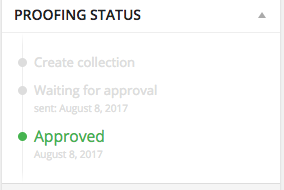
  • Create a collection of images you want your client to proof.
  • A link is generated for the specific collection and you can either email that link manually or that send an email straight from the WP backend to the client with a customizable message attached.
  • Clients then receive the link and approve whichever images they choose fit.
  • benefits of having the picu plugin

    The free plugin has no quantitative restrictions on how many collections, images or the file size that can be uploaded. This doesn't mean you should be using the plugin to send thousands of images to clients, but to each their own. This is client proofing made extremely easy for those that are in dire need of client approval, input, and consideration.

    picu add-ons

    The foundation of picu allows for a great start for freelance photographers to create client proofing galleries and album favorites but the icing on the cake are the add-ons. Picu currently offers three add-ons (click here for more info):

    Download ($26): enables you to allow clients to download the collection images as a .zip file. Alternatively you can specify an external link.

    Import ($26): Dealing with large collections that contain lots of images? This add-on enables you to import images directly from a folder on your web server. Just upload images via ftp and save precious time.

    Selection Options ($26): enables you to set specific selection goals: Define an exact, minimum, maximum or a range of numbers of images your client needs to approve.

    With these add-ons picu acts like a third party client gallery site, displacing the need for cloud-based image delivery. It's strongest feature for additional revenue is definitely the Selection Options add-on, great for creating albums or having clients choose which images they need printed.

    [REWIND: RECOMMENDED WORDPRESS PLUGINS FOR PHOTOGRAPHERS] future add-on features coming soon

    Brand & Customize: enables you to customize the overall appearance of your collections. Add your logo, adjust the color scheme and select a font that fits your brand and corporate identity.

    "Mark & Comment" is the next add-on that picu wants to get out the door which actually was derived from photographers that used the plugin and felt as though this feature was missing. This will allow commenting on individual images. Apart from that, picu is developing new features for the free version of the plugin such as automatic watermarks and various performance improvements.

    WordPress is easily the most commonly used photographer website domain simply due to its digestible interface and customizable templates. Picu can facilitate your client experience with easy to comprehend directions and professional proofing services. Check out the free WP plugin here and kick your client experience up a notch!

    Confused on where to start with your WordPress photography site? See why we recommend WordPress and get a rundown of our favorite plugins in our Photography SEO & Web Marketing Book in SLRL Premium! 


    Source: Picu WordPress Plugin Review | Client Proofing Made Easy